One lens, three ways to read it: steel hands, digits inside the iris, or turning rings. The iris opens as you walk.
Ridgeline
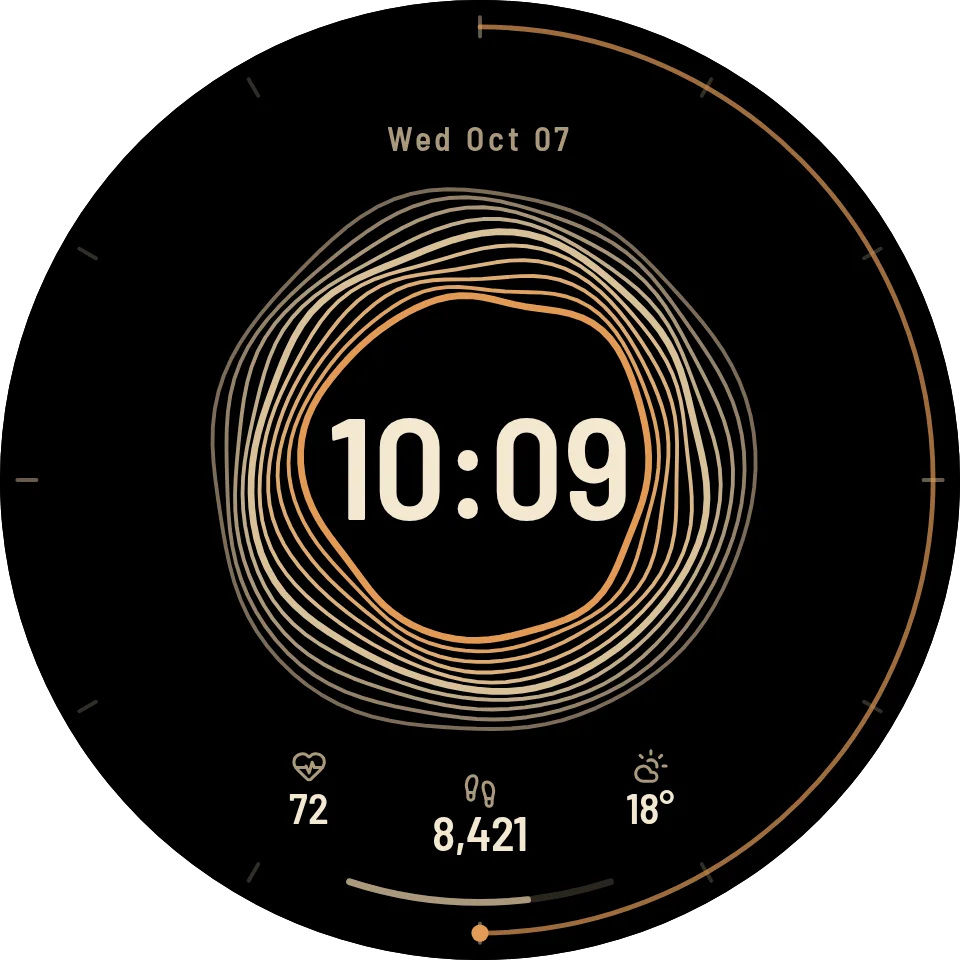
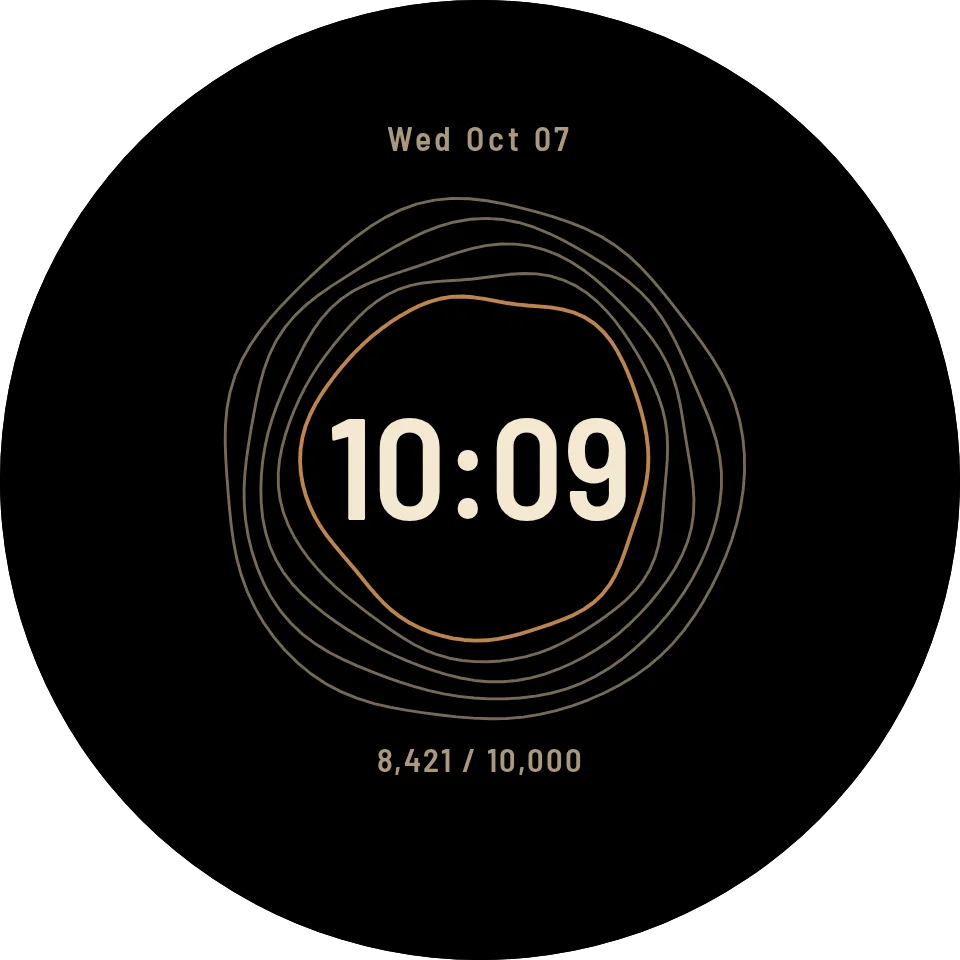
Every step adds height. As you approach your daily step goal, more contour lines appear and the terrain widens; every fifth line is drawn heavier, like the index contours on a survey map. Large condensed numerals keep the time readable at a glance.
How to read Ridgeline
Point at or tap a part to light it up on the watch.
Lite or Pro · Ridgeline
Pro is paid. Lite is free and keeps the face's signature motion; Pro adds every palette, style and setting.
| Feature | Lite | Pro |
|---|---|---|
| Live terrain from steps | ||
| Dial styles: Classic, plus Map and Relief on round screens | Classic | 3 |
| Elevation colors · summit to foothills | - | |
| Terrain from steps, heart rate or battery | Steps only | |
| Palettes | Mono | 5 |
| Complications | Steps only | 3 customizable |
| Always-on | Time only | Contour or time only |
| Seconds arc, 3 text sizes | - |
Previews
Questions
Is the terrain a GPS map?
No. By default the terrain follows your watch's step count and step goal. The face reads no location, so it is not a map of any place.
Does Ridgeline work on Galaxy Watch and Pixel Watch?
Yes, on any watch with Wear OS 5 or later, such as recent Galaxy Watch and Pixel Watch models.
How do I install Ridgeline?
Open Ridgeline Pro or Ridgeline Lite on Google Play from your phone or watch and install it on your watch. Then long-press your current watch face and pick Ridgeline. If it is not in the list, tap the option to add more watch faces and choose it there.
Can I try Ridgeline before I buy it?
Yes. The try page runs Ridgeline live in your browser: change every palette, setting and the always-on display, and set the time and the watch data yourself. Try Ridgeline in your browser
More faces
Red car for seconds, yellow car for minutes, white car for hours, each in its own lane.
A night drive on your wrist: your battery and your steps glow on the gauges while the road runs on to the horizon.
A small world in a glass globe: the sky follows the hour and the weather, and the tree grows as you walk.
A service pistol on an armorer's mat. Tap the pistol and it fires a round; put the watch on the charger and the pistol comes apart.
Four nixie tubes keep the time: one wire numeral glows in each, and a neon bar tube fills as you walk.